
How to Map a Network Share Folder
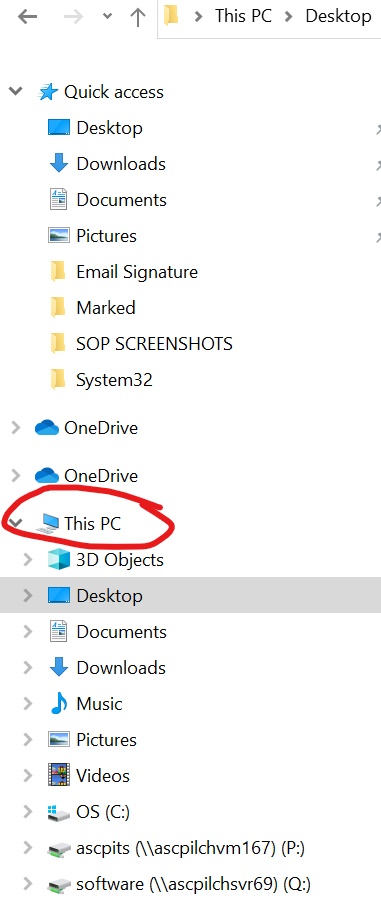
1) Open File Explorer and go to the This PC tab on the left hand side.
 2) Click the Computer tab, then click the dropdown menu on the Map network drive tab, then click Map network drive.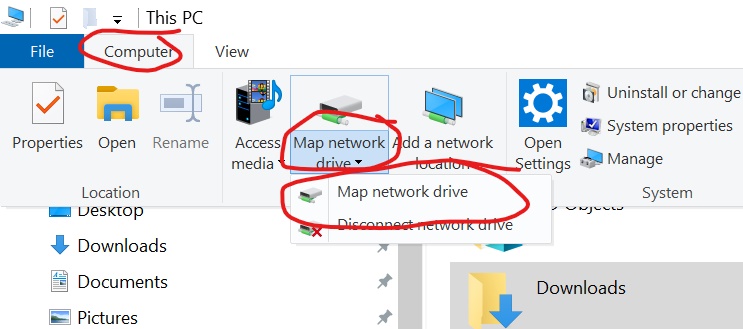
3) In the pop-up window select the drive letter you would like from the drop-down menu, enter the file path of the network share folder you would like to map. You can type out the entire file path of the network share folder you would like mapped, or you can enter the server's name and click the Browse button to see a list of available network share folders on the server selected.
3a. For example - if you wish to map to your home drive, the address path will be as shown below.
\\ascpilchvm167\home\"first name last inital"
Jane Doe will be this:
\\ascpilchvm167\home\janed
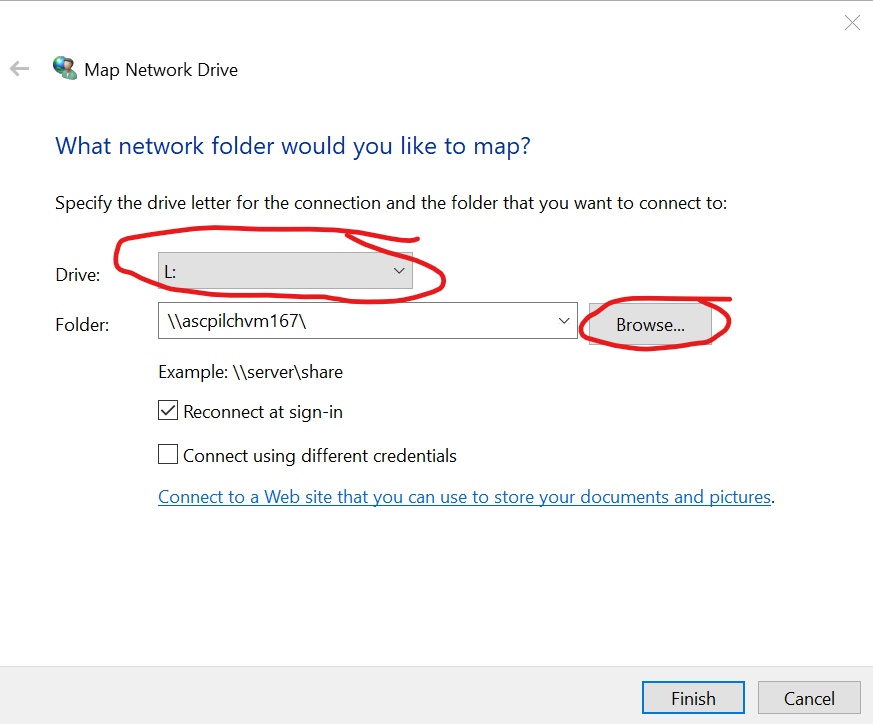
5) Select the Reconnect at logon option to keep the mapped drive the next time you logon.
5a. Select the Connect using different credentials option only if you will be using a different login from your normal network login.
5a. Select the Connect using different credentials option only if you will be using a different login from your normal network login.
7) Click Finish to complete. It should now appear as a mapped drive under the drive letter that you chose.