Set, View, Change, or Remove Permissions on Files and Folders
Applies To: Windows 7, Windows Server 2008 R2
https://technet.microsoft.com/en-us/library/cc754344.aspx
When a file or folder is created, Windows assigns default permissions to that object.
Modify is the minimum permission required to complete this procedure. Review the details in "Additional considerations" in this topic.
To set, view, change, or remove permissions on files and folders
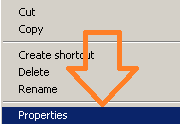
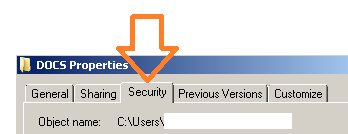
1. Right-click the file or folder for which you want to set permissions, click Properties, and then click the Security tab.
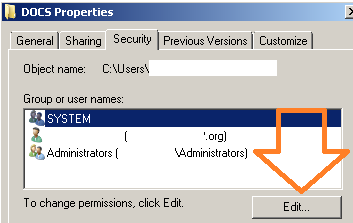
2. Click Edit to open the Permissions for <Object> dialog box.
-
Do one of the following:
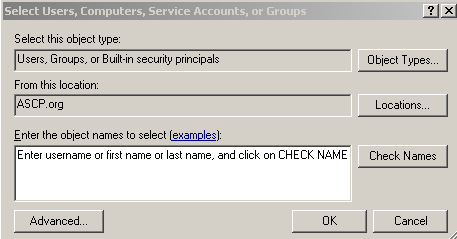
- To set permissions for a group or user that does not appear in the Group or user names box, click Add. Type the name of the group or user you want to set permissions for, and then click OK.
- To change or remove permissions from an existing group or user, click the name of the group or user.
- To set permissions for a group or user that does not appear in the Group or user names box, click Add. Type the name of the group or user you want to set permissions for, and then click OK.
Do one of the following:
- To allow or deny a permission, in the Permissions for <User or Group> box, select the Allow or Deny check box.
- To remove the group or user from the Group or user names box, click Remove.