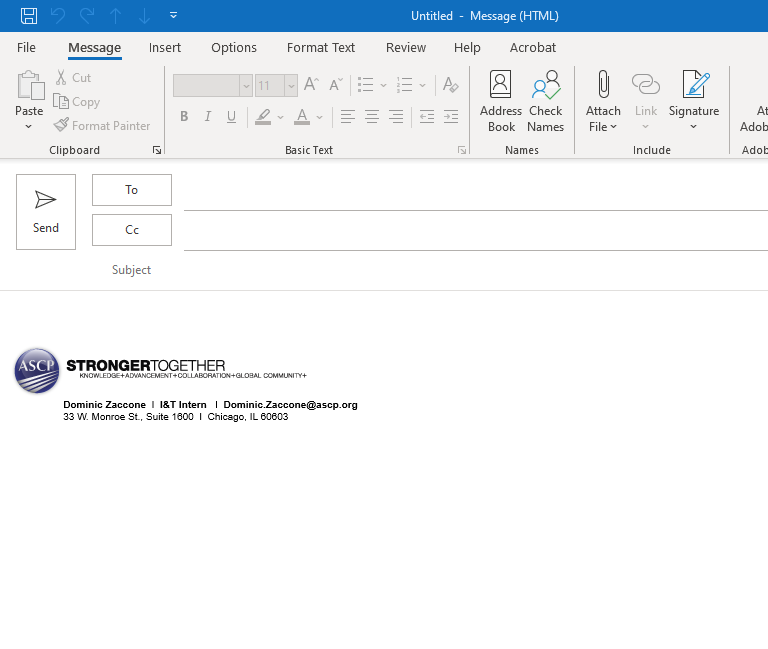
1. Begin by downloading the file attached to this FAQ.
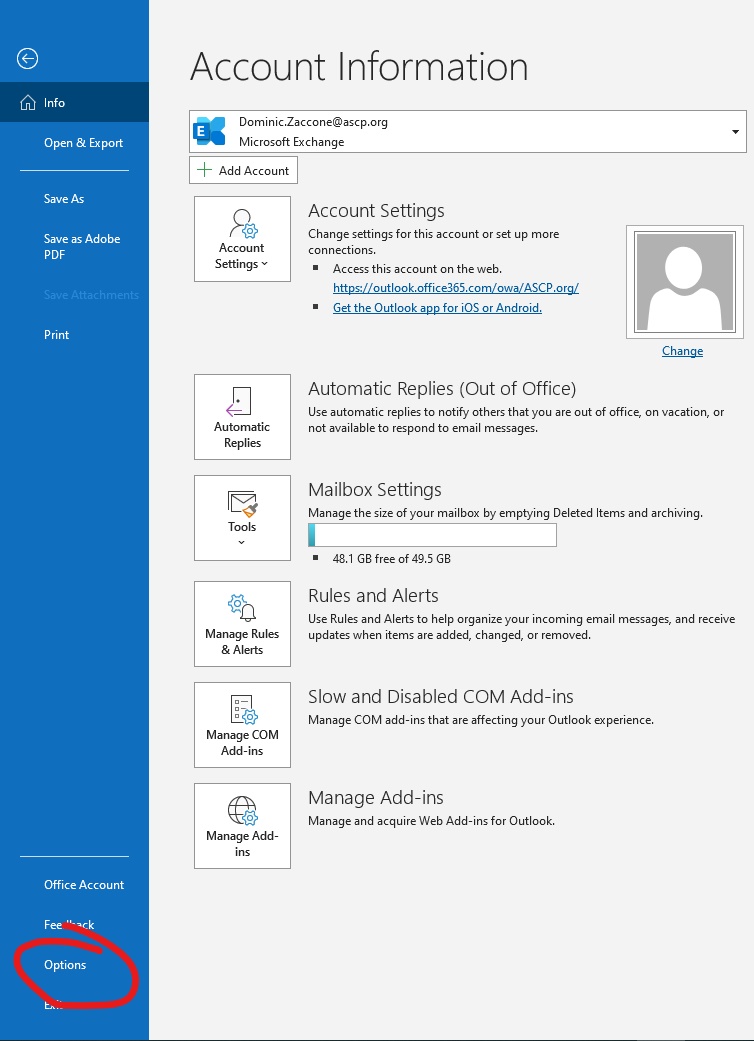
2. Open Outlook and click on File.

3. Click on the Options tab.
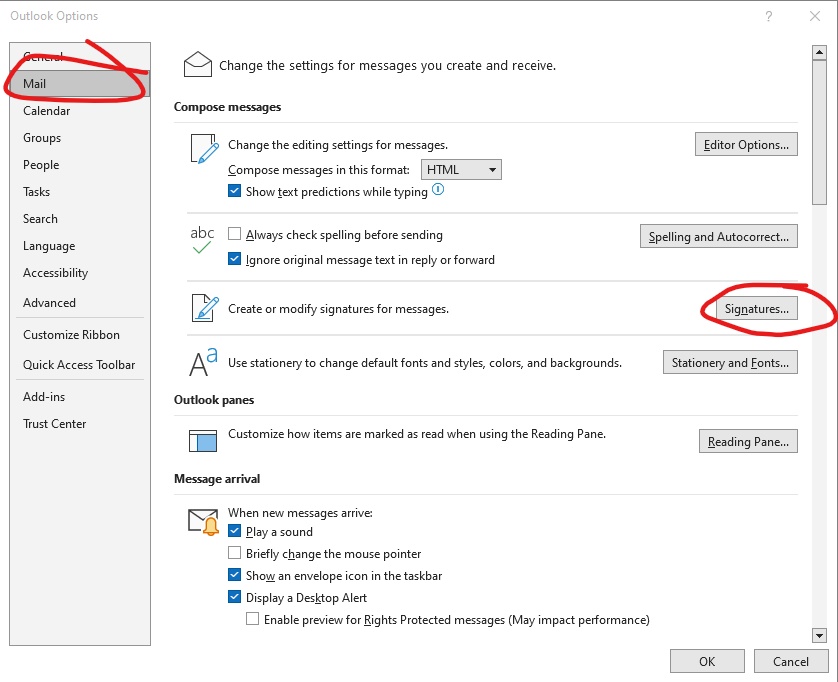
4. In the new window that pops up click on the Mail tab the click on the Signature button.
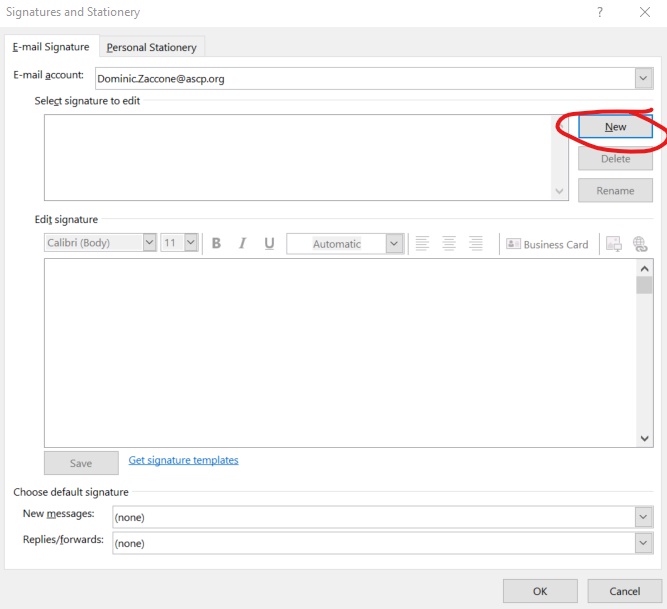
5. In the new window that pops up click on the New button.
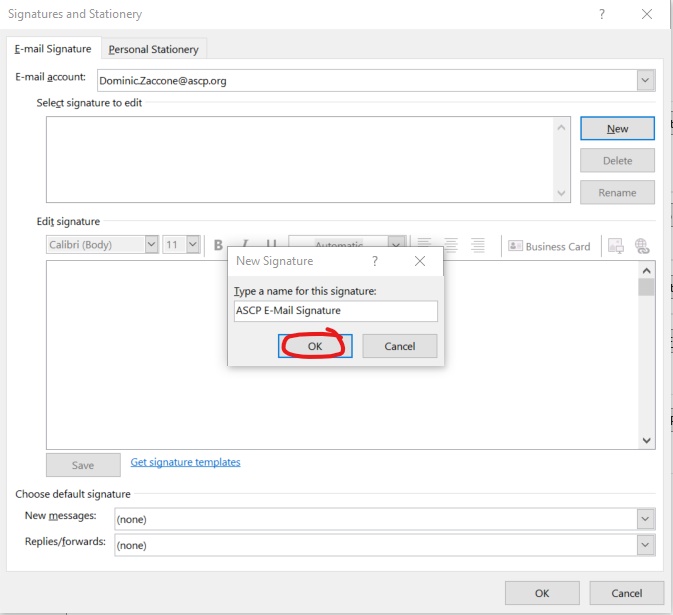
6. In the new window that pops up enter a name for your new signature then click the OK button.
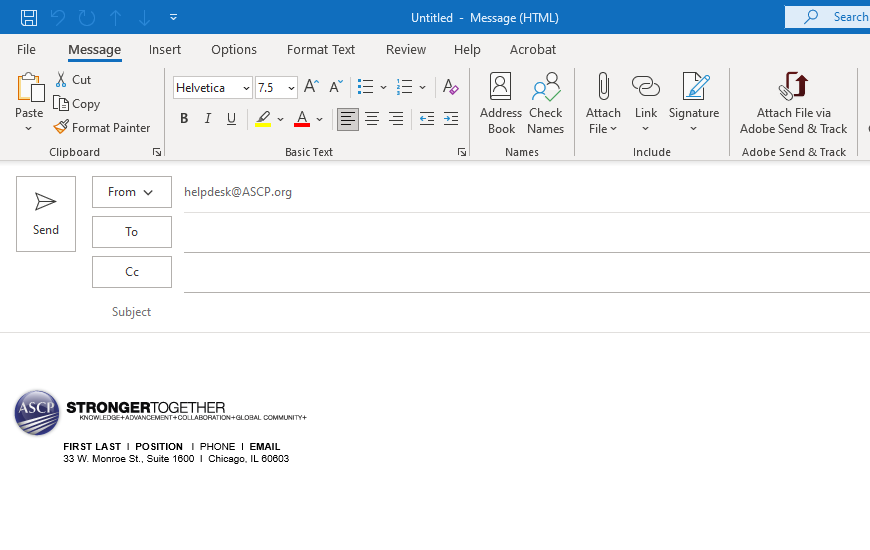
7. Go to your downloads folder and open the attachment that you downloaded at the beginning of this tutorial. Highlight and copy the contents of this message.
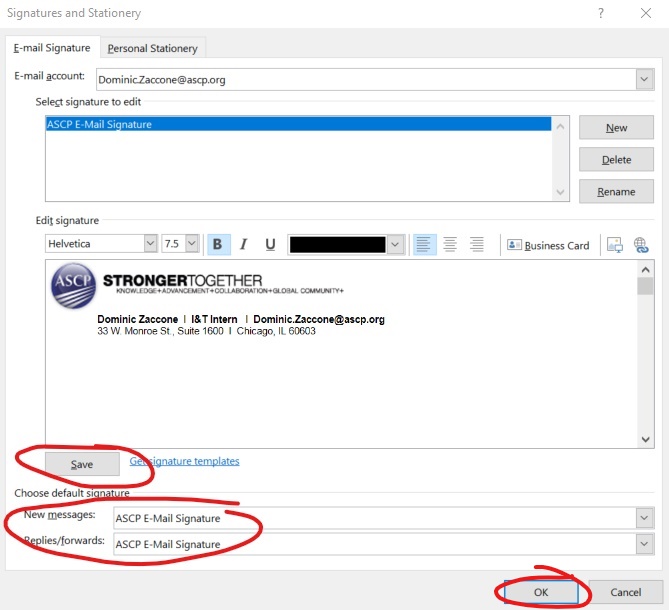
8. Go back to your Outlook page and paste the contents into the Edit Signature box. From here enter your contact information into the template and add any additional information you want in your signature, such as websites. After you are happy with the look of your signature click the Save button. Do not forget to set this new signature as your default for New messages and Replies/forwards. Click the OK button.
9. Open a new email to verify that your new signature is displaying correctly. If it is not and you are having trouble please submit a ticket to our helpdesk and we will connect with you to solve the issue.