
This FAQ guide will show you how to add one of the two Xerox printers in the Chicago office. You can use this method to add another printer as long as you know the printers IP address.
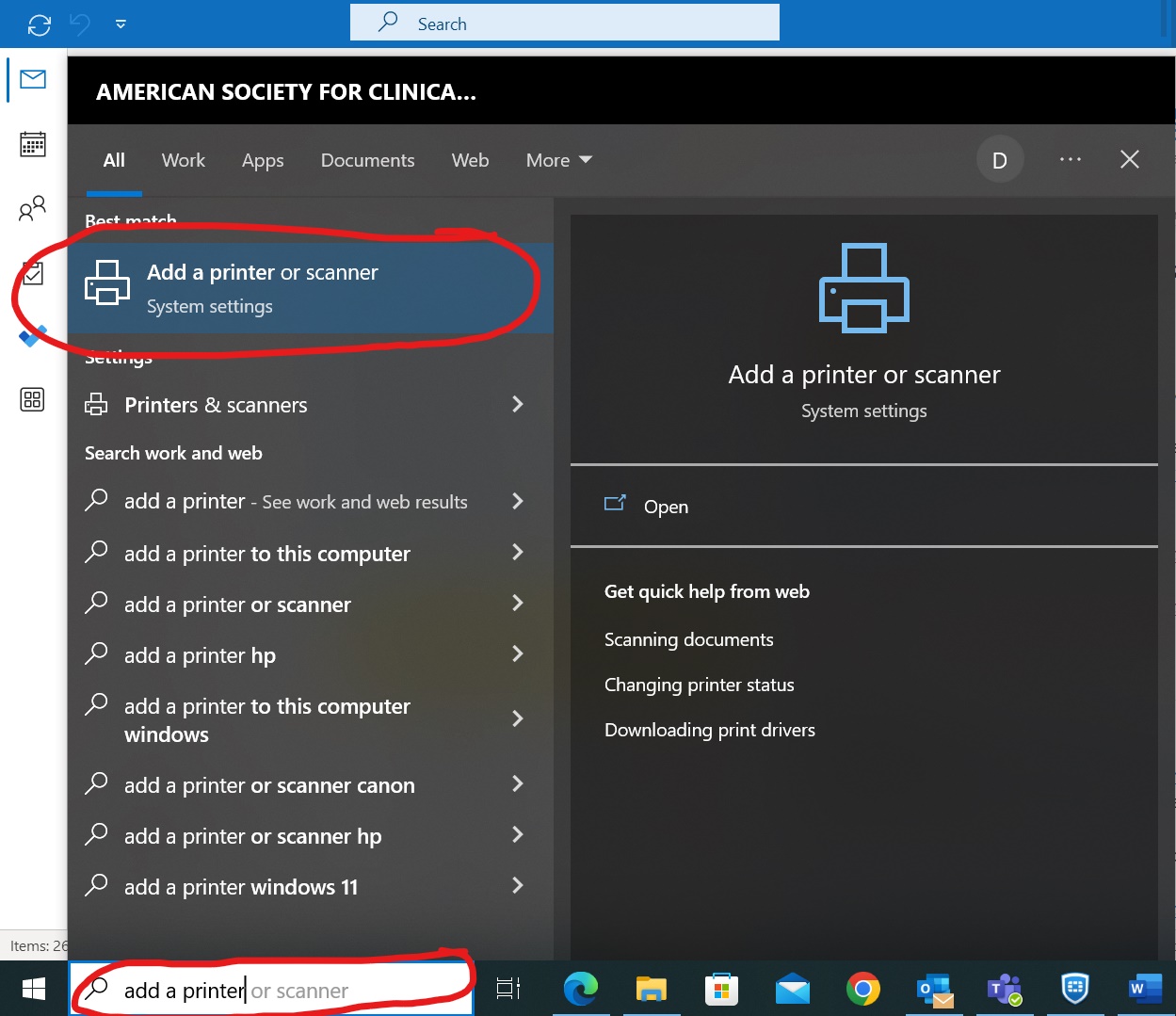
- Type "add a printer or scanner" into your desktop search bar and click on the option labeled "Add a printer or scanner".
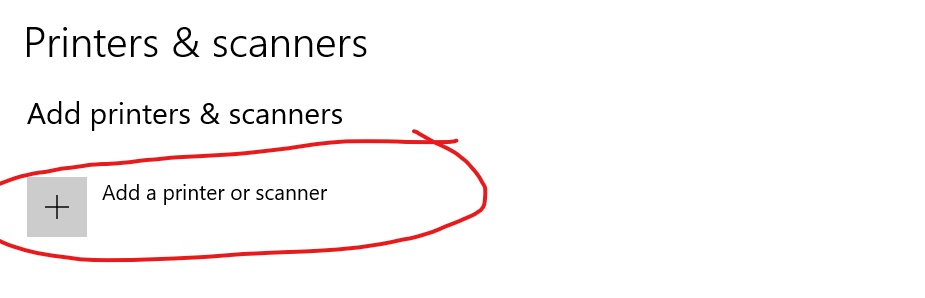
- In the window that pops up click on the plus sign next to the text "Add a printer or scanner"
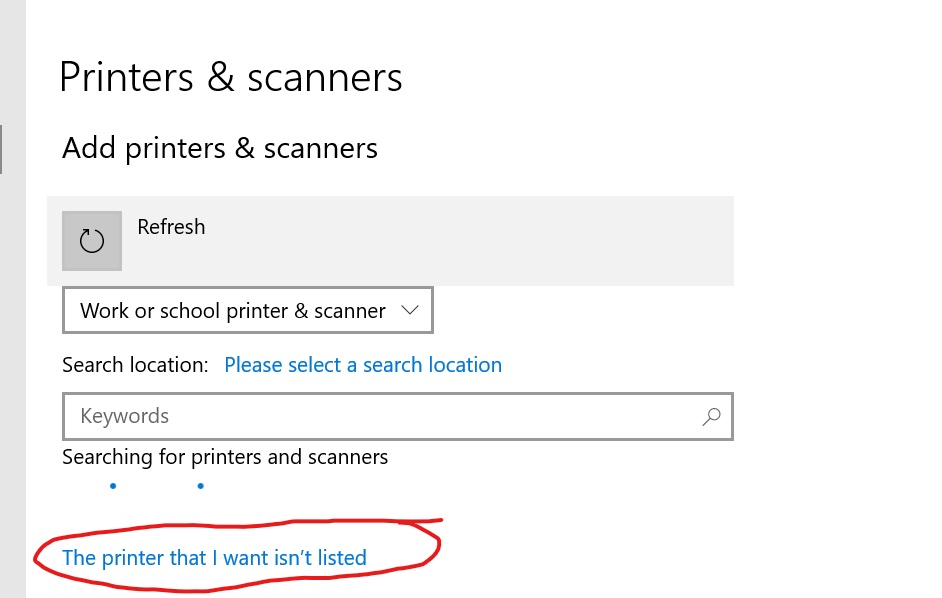
- After a few moments you will see the option "The printer that I want isn't listed" and you will click it.
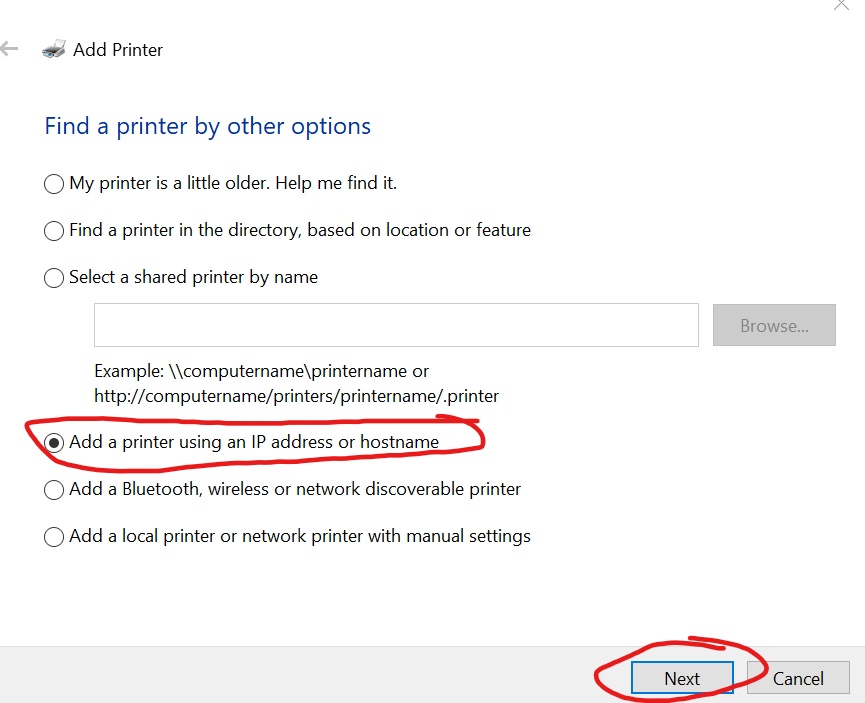
- In the window that pops up you will click the circle next to the option "Add a printer using an IP address or hostname.
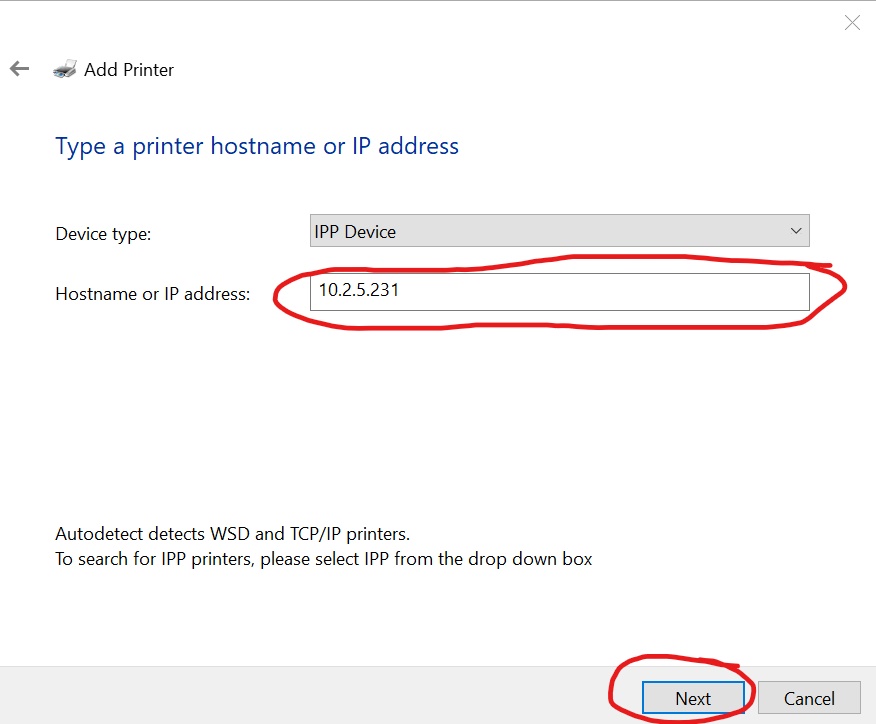
- Under the "Hostname or IP address" option you will enter one of two IP addresses. If you are trying to connect to the printer near BOC you will enter "10.2.5.231" and then click the "Next" button. If you are trying to connect to the printer near Marketing you will enter "10.2.5.232" and then click the "Next" button.
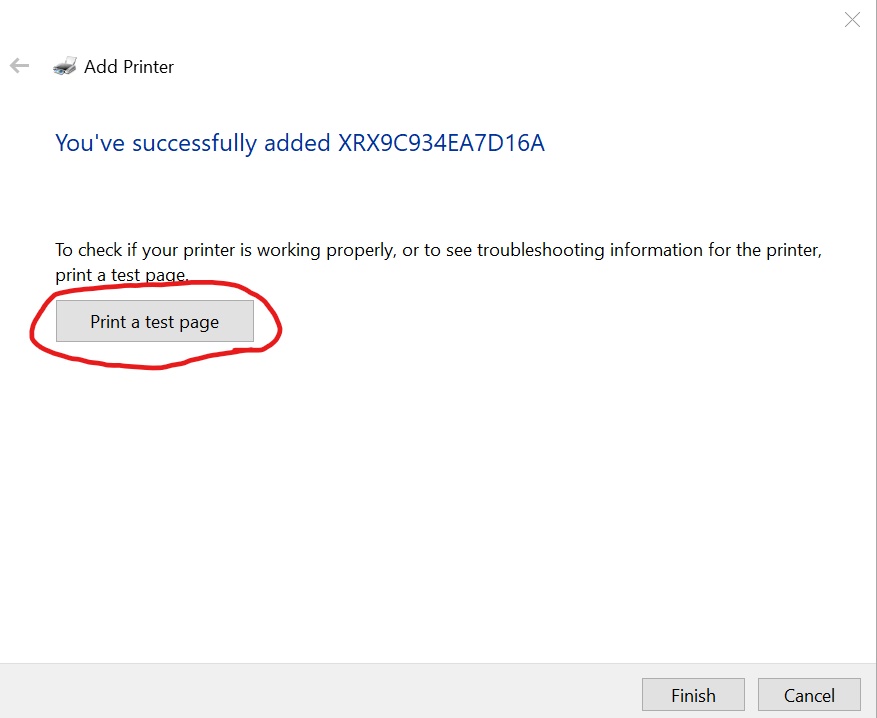
- You should now be connected to your desired printer! To confirm that you are connected click the "Print a test page" button to test your connection. You should then go to the printer you connected to and check for a printed page. If you do not see a printed page then you should check the other printer. If you see a printed page there then you connected to the wrong printer and need to repeated the process from step 5 using the other IP address.
Happy printing!!